How to send bulk texts with Zoom Phone
Overview
Zoom Phone doesn't include built-in bulk texting or mail merge capabilities. Bulk Texter Pro adds those features, allowing you to send personalized text messages through your existing Zoom Phone number. Since messages come from your existing Zoom Phone number, recipients can recognize you as the sender and continue the conversation naturally.
Whether you're a teacher reminding students about assignments, a church contacting members, or a small business following up with customers, Bulk Texter Pro lets you import contacts from a spreadsheet and send individualized text messages that appear as normal Zoom Phone conversations.
Why Zoom Phone?
Zoom Phone can be a great choice for organizations that want everything on a single unified communications platform. Bulk Texter Pro extends Zoom Phone's capabilities by adding features such as:
- Personalized mail merge for bulk messaging
- CSV / Google Sheets / Excel spreadsheet imports
- Individual conversations at scale
- Scheduling messages in advance
- Group conversations with parents and students
- Sending photos
- Live progress tracking
How does it work?
With Bulk Texter Pro, every individual user on a Zoom Phone account will be able to send bulk personalized texts from their own account's phone number.
Bulk Texter Pro works by performing clicks and other actions on the Zoom Phone web portal on your behalf. You must have an active Zoom Phone number and be signed into the web portal for Bulk Texter Pro to work.
Prerequisites
To use Bulk Texter Pro with Zoom Phone, you must meet the following criteria:
- Sign into the Zoom Phone web portal.
- Your Zoom Phone account must be capable of sending texts to external numbers.
- Have an active Bulk Texter Pro subscription, and have it installed in one of our supported browsers.
Bulk Texter Pro for Zoom Phone: demo
Setup
Step 1: Zoom Phone web setup
Sign into the Zoom Phone web portal. Make sure that you're able to send SMS messages via the Zoom web app linked above, before you start using Bulk Texter Pro with it.
Your Zoom Phone account will need to be set up to text external numbers. You can learn more about this in Zoom's documentation.
Subscribe to Bulk Texter Pro for Zoom, if you haven't already.
Step 2: Send texts
Try manually sending texts without Bulk Texter Pro, to make sure your Zoom Phone account is configured correctly.
Now that your Zoom Phone account is set up, you can start using Bulk Texter Pro!
See our guides on typing in recipients and uploading a CSV for a complete rundown on how to use Bulk Texter Pro.
To send texts with Zoom, just make sure that you've selected "Zoom" in the Texting Platform drop down in the 1 – Choose Settings section.
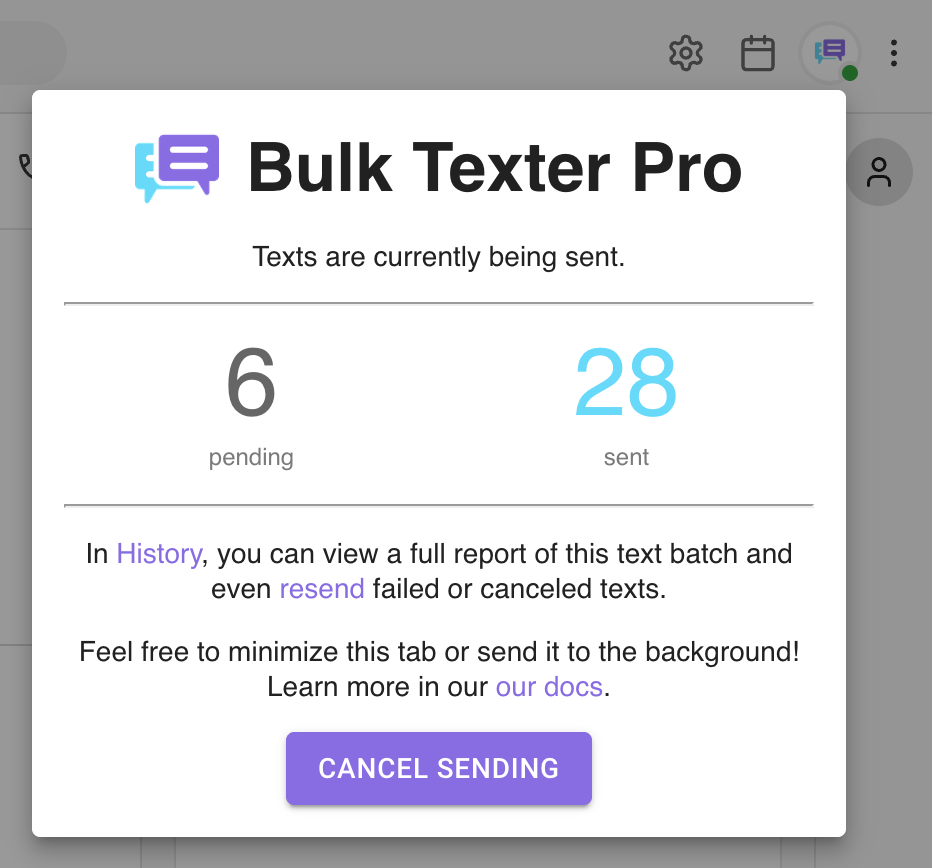
While Bulk Texter Pro is sending texts, it will show its progress live in a popup on your Zoom Phone tab:
Specifying the number to send from
If you have multiple phone numbers in your Zoom account, you can specify the one you want Bulk Texter Pro to send from in the 1 – Choose Settings section.
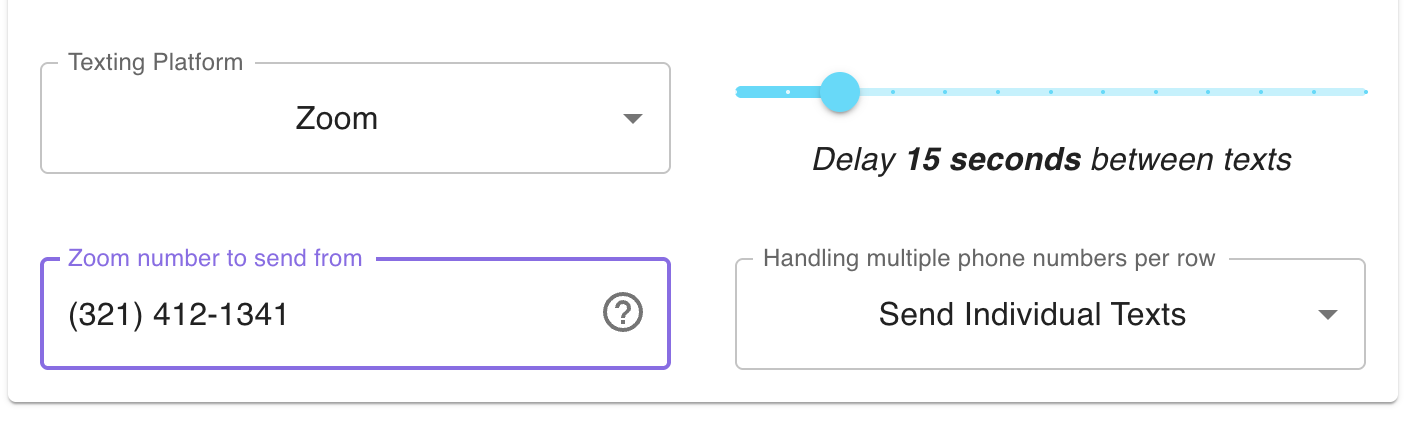
It doesn't matter how you format the number, as long as the digits match what is shown in your Zoom Phone account.
If you don't have multiple phone numbers in Zoom, you should leave this field blank.
Personalizing your messages
Bulk Texter Pro's mail merge is the reason a batch of 30 texts takes minutes instead of an afternoon. You write the message once with {Placeholders} in it, and every recipient gets their own version.
Start with a spreadsheet — an export from whatever system you already use, or something you typed by hand. It needs a column of phone numbers, plus a column for anything that changes per recipient. Here's what that looks like for a facilities company scheduling cleaning crews:
| PhoneNumber | FirstName | Site | ShiftStart | Supervisor |
|---|---|---|---|---|
| (555) 123-4567 | Angela | Northgate Medical | 6:00 PM | Rosa |
| (555) 234-5678 | Ben | Harbor Point Tower | 10:00 PM | Dmitri |
| (555) 345-6789 | Teresa | Northgate Medical | 6:00 PM | Rosa |
Save it as a CSV, upload it, and write your message once using the column names as fields:
Bulk Texter Pro fills in the blanks for every row:
You can review every generated message under 4 – Preview & Send before anything is sent. Our CSV upload guide covers the rest — unlimited columns, group texts that include more than one number per row, and attaching photos.
Frequently Asked Questions
Does Bulk Texter Pro use my Zoom Phone number?
Yes, Bulk Texter Pro will send messages via your own Zoom Phone number, and conversations will appear in your Zoom Phone account.
Can recipients reply?
Yes, your messages will come from your own Zoom Phone number, and recipient responses will be sent back to your Zoom Phone number.
Will recipients see each other's responses?
Bulk Texter Pro supports both bulk individual texts and bulk group texts.
By default, each recipient receives their own private conversation, so recipients cannot see anyone else's replies.
However, you can intentionally create group conversations whenever appropriate, such as including both a student and their parent or guardian in the same conversation.
Who uses Bulk Texter Pro with Zoom Phone?
Bulk Texter Pro with Zoom Phone is commonly used by:
- Virtual schools
- Teachers
- Coaches
- Churches
- Nonprofits
- Healthcare practices
- Small businesses
- Government agencies
- Volunteer organizations
We've written up the common workflows for schools and teachers, medical and dental offices, trucking and dispatch, and churches and nonprofits.
Can Zoom Phone send bulk texts?
Zoom Phone does not support bulk texting on its own. You'll need to use a third party tool like Bulk Texter Pro. Bulk Texter Pro adds mail-merge functionality for mass texting via your Zoom Phone account.
How many messages can I send with Zoom Phone and Bulk Texter Pro?
Bulk Texter Pro does not impose any limits on messaging beyond what Zoom Phone imposes.
Your throughput depends on the campaign your number is registered under, since carriers apply message rate limits based on your approved Zoom Phone SMS campaign. Zoom Phone users are often able to send ~250 high quality messages per hour with Bulk Texter Pro.
For more information, see our best practices and recommendations.
Bulk Texter Pro isn't working as expected.
See our comprehensive troubleshooting guide.