How to send bulk texts with Google Voice
Overview
Google Voice doesn't include built-in bulk texting or mail merge capabilities. Bulk Texter Pro adds those features, allowing you to send personalized text messages through your existing Google Voice number. Since messages come from your existing Google Voice number, recipients can recognize you as the sender and continue the conversation naturally.
Whether you're a teacher reminding students about assignments, a church contacting members, or a small business following up with customers, Bulk Texter Pro lets you import contacts from a spreadsheet and send individualized text messages that appear as normal Google Voice conversations.
Why Google Voice?
Many organizations already use Google Voice for everyday communication. Bulk Texter Pro extends those capabilities by adding features such as:
- Personalized mail merge for bulk messaging
- CSV / Google Sheets / Excel spreadsheet imports
- Individual conversations at scale
- Scheduling messages in advance
- Group conversations with parents and students
- Sending photos via either local file upload or Google Photos
- Live progress tracking
How does it work?
Bulk Texter Pro works by performing clicks and other actions on the Google Voice webpage on your behalf. You'll need to have an active Google Voice account, and Bulk Texter Pro can only send texts while your computer is turned on and unlocked.
Prerequisites
To use Bulk Texter Pro with Google Voice, you must meet the following criteria:
- Have an active Google Voice account that is able to send texts.
- Have an active Bulk Texter Pro subscription, and have it installed in one of our supported browsers.
- Your Bulk Texter Pro subscription email address must match your Google account email address.
Bulk Texter Pro Google Voice demo
Setup
Step 1: Google Voice setup
If you don't have a Google Voice account yet, you'll need to sign up for one – it's free! You can follow Google's own setup guide for Google Voice here: Google Voice Setup Guide.
Step 2: Send texts
Now that your Google Voice account is set up, you can start using Bulk Texter Pro!
See our guides on typing in recipients and uploading a CSV for a complete rundown on how to use Bulk Texter Pro.
To send texts with Google Voice, just make sure that you've selected "Google Voice" in the Texting Platform drop down under 1 – Choose Settings.
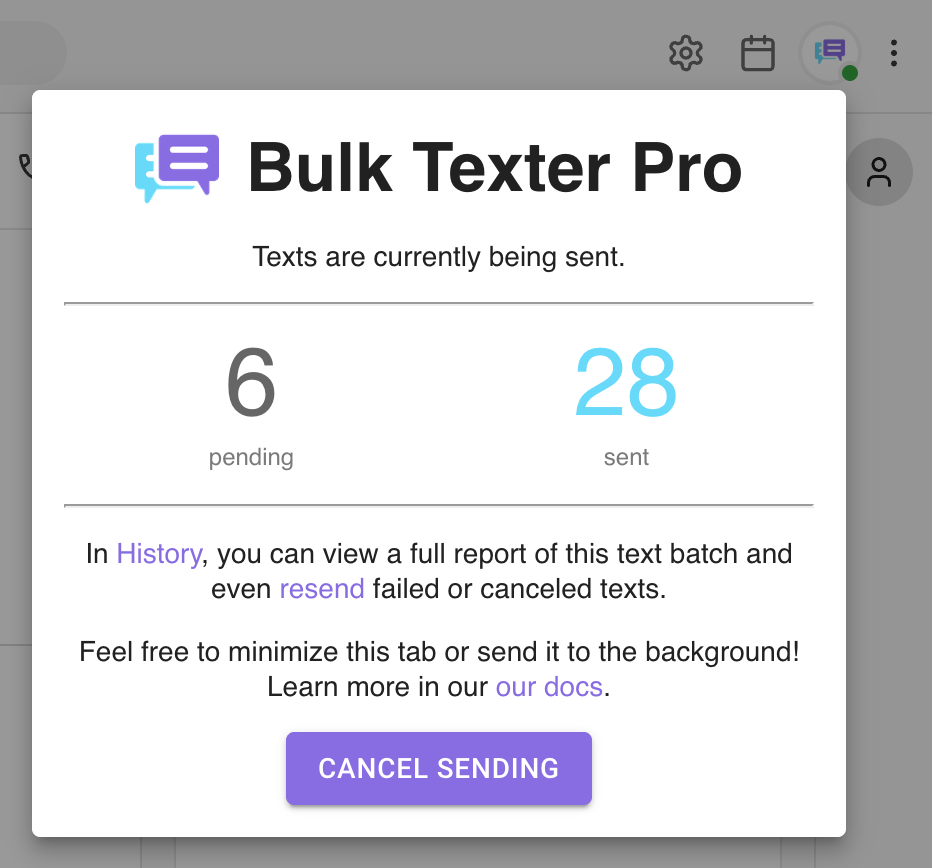
While Bulk Texter Pro is sending texts, it will show its progress live in a popup on your Google Voice tab:
Your first send to a new list
Google Voice treats starting a new conversation differently from sending into one that already exists. Sending into an established thread is comparatively unrestricted. Opening many brand-new threads in a short window is the operation Google throttles, because a number that suddenly messages hundreds of people it has never messaged before tends to look like spam.
So your first send to a new list is the hardest one. Upload 60 numbers you've never texted and send all at once, and Google Voice will likely rate limit you partway through. If that happens, the soft block usually lifts on its own within 24 to 48 hours — there's nothing to appeal or reset.
Ramping up a new list
- Start with a small batch – 15 to 20 recipients, not the whole list.
- Spread the rest over several days, in similar batches, until each recipient has a thread.
- Send to the full list after that. The threads already exist, so subsequent batches are no longer creating new conversations.
Two things shorten the ramp:
- Start with recipients who have texted you before. Those threads may already exist, so there is nothing to create.
- Ask for a reply. An inbound message is the strongest signal that a conversation is wanted, and it makes the thread unambiguously two-way.
This matters most on free Google accounts, which have the tightest limits on new conversations. Paid Google Workspace, Google Education, and Google Voice Starter accounts have more headroom, but the same pattern applies — ramping up is still the reliable approach.
If a batch does stall partway through, the messages that didn't send are kept in History, and you can resend just those once the rate limit clears.
Personalizing your messages
Bulk Texter Pro's mail merge is the reason a batch of 30 texts takes minutes instead of an afternoon. You write the message once with {Placeholders} in it, and every recipient gets their own version.
Start with a spreadsheet — a gradebook or LMS export, or something you typed by hand. It needs a column of phone numbers, plus a column for anything that changes per recipient. Here's what that looks like for a teacher sending progress updates:
| PhoneNumber | FirstName | Course | PercentComplete | Grade | Missing |
|---|---|---|---|---|---|
| (555) 123-4567 | Maya | English 3 | 62% | 86% (B) | 6.04, 6.05 |
| (555) 234-5678 | Devon | English 3 | 41% | 74% (C) | 5.02, 6.04, 6.05 |
| (555) 345-6789 | Priya | Algebra II | 78% | 93% (A) | none |
Save it as a CSV, upload it, and write your message once using the column names as fields:
Bulk Texter Pro fills in the blanks for every row:
You can review every generated message under 4 – Preview & Send before anything is sent. Our CSV upload guide covers the rest — unlimited columns, group texts that include more than one number per row, and attaching photos.
Sending photos with Google Voice
Google Voice allows images up to 2 MB in size.
By default, Bulk Texter Pro attaches photos by uploading them from your computer, which is the most reliable way to send photos and works the same across every texting platform. See our guide to sending photos for how to attach a photo to a batch.
Google Voice is also the only platform where Bulk Texter Pro can send photos straight out of your Google Photos account, as an alternative to local file upload.
Sending photos via Google Photos
Sending photos via Google Photos may not be as reliable as sending photos via local file upload.
Step 1: Enable sending photos via Google Photos
To send photos via Google Photos, you'll need to toggle on the relevant option in Bulk Texter Pro's settings. To do this, click the account menu at the top right of Bulk Texter Pro, then click Settings.
Then, check the option in the popup to enable sending photos via Google Photos. This adds a Google Photos button alongside the Upload Photo button.
Step 2: Upload your photos to Google Photos
Any photos you want to send will need to first be uploaded to Google Photos in the same Google account as the Google Voice account that you are using with Bulk Texter Pro.
Step 3: Send the photos
A Google Photos button will now be visible at the bottom of the message box, alongside Upload Photo. Click it, and it will allow you to select a photo to send from your Google Photos account.
If you want to send multiple photos, you will need to schedule multiple texts.
The photo that you attach will be noted on each text under 4 – Preview & Send, and again in History once the batch has been sent.
Sending a distinct photo with each text
If you'd like to send a distinct photo with each text, you'll need to upload a CSV. This is currently only supported when sending via Google Photos, and is not supported when sending photos via local file upload.
Add a column titled PhotoFileName to your CSV. The file name value in each row should match what shows up when you click the "Info" button on a picture in Google Photos.
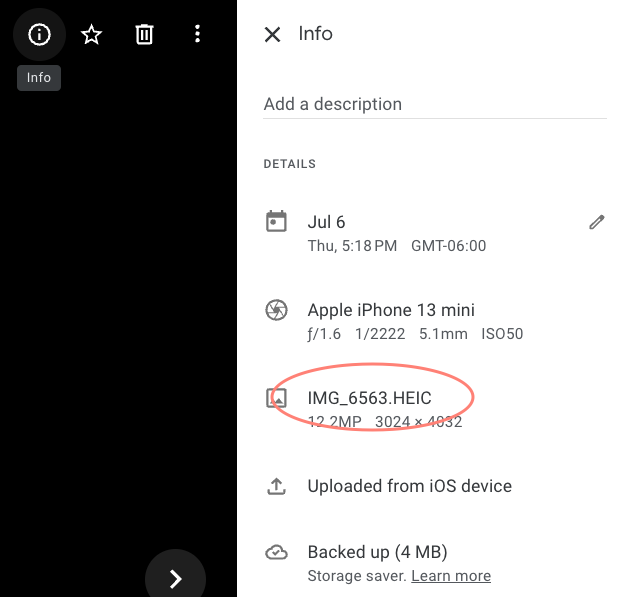
If you are uploading photos from a computer, the file names in Google Photos will match the original file names on your computer.
If you are a teacher, for example, you could:
- Generate a unique photo for each student named
test_score_{student_id}.png, where the student's id is part of each file name. - Upload all the photo files to your Google Photos account.
- In your CSV, add
test_score_{student_id}.pngto thePhotoFileNamecolumn for each student. - When you send your texts via Bulk Texter Pro, each student will receive the unique photo you generated for them.
Additional tips for sending via Google Photos
- Google Voice only allows images up to 2 MB in size, even via Google Photos. If the image you select is too large, Google Voice will not send it.
- If your Google Workspaces admin has disabled usage of Google Photos on your account, this option will not work.
Frequently Asked Questions
Does Bulk Texter Pro use my Google Voice number?
Yes, Bulk Texter Pro will send messages via your own Google Voice number, and conversations will appear within your Google Voice account.
Can recipients reply?
Yes, your messages will come from your own Google Voice number, and recipient responses will be sent back to your Google Voice number.
Will recipients see each other's responses?
Bulk Texter Pro supports both bulk individual texts and bulk group texts.
By default, each recipient receives their own private conversation, so recipients cannot see anyone else's replies.
However, you can intentionally create group conversations whenever appropriate, such as including both a student and their parent or guardian in the same conversation.
Can Google Voice send bulk texts?
Google Voice does not support bulk texting on its own. You'll need to use a third party tool like Bulk Texter Pro. Bulk Texter Pro adds mail-merge functionality for mass texting within your own Google Voice account. See our FAQs below about Google's messaging limits and how to safely use Bulk Texter Pro with Google Voice.
How many messages can I send with Google Voice and Bulk Texter Pro?
Bulk Texter Pro does not impose any limits on messaging beyond what Google Voice imposes.
Google Voice users with paid Google Workspaces or Google Education accounts are typically able to send up to 300-500 texts per day. Even personal Google Voice accounts can be upgraded to Google Voice Starter for $10/month, which can increase send limits.
Google Voice users with free Google accounts are typically able to send up to ~150 texts per day, once they have established conversations in place with recipients. Getting those conversations established is the part that trips people up on a brand new list – see our recommendations for your first send to a new list.
Bulk Texter Pro has thousands of users who are happily using it without issue, because they are not using it for spam — such as teachers, religious clergy, coaches, or small business owners. Your experience can vary depending on your the age of your Google Voice account, the content and quality of your messages, the responsiveness of your recipients, and other factors.
If you're looking for a solution for prospecting or marketing, Bulk Texter Pro is not the right choice. Using Bulk Texter Pro for spam or telemarketing is a direct violation of our terms of use. If recipients mark your texts as spam, you should expect to get shut down very quickly. You should only send messages that you are confident that people want to receive.
For more information, see our best practices and recommendations.
Can I use Bulk Texter Pro with multiple Google accounts?
Yes! You can subscribe with as many Google accounts as you want in Bulk Texter Pro. Alternatively, you can sign in with each paid account on a separate Chrome / browser profile for each Google Voice user, which can help if you're scheduling texts for multiple accounts.
Bulk Texter Pro is only authorized to integrate with Google Voice accounts that have an active subscription.
Can I use Bulk Texter Pro with a Google Workspaces or Education account?
Yes, you can — and most of our users do!
This can be especially useful because paid Google Voice accounts are typically able to send more messages than free accounts. See our breakdown above.
We love working with schools! To learn more about Bulk Texter Pro for schools, check out our post about using it as a virtual school teacher.
Can I keep using Google Voice while Bulk Texter Pro is running?
Yes. Once Bulk Texter Pro uses a tab to send texts, it will continue using that same tab for as long as it is open. You can even minimize the tab or move it to the background, and Bulk Texter Pro will continue running on it.
You are welcome to open additional Google Voice tabs in your browser. Bulk Texter Pro will not use them.
The Photo Upload step is slow.
The most reliable way to send photos via Google Voice is by uploading the photo for each text, which is why Bulk Texter Pro does it that way. Upload speed will be based on the quality your internet connection and the size of the photo, so you have a slower internet connection, you might experiment with sending smaller / more compressed photos.
Who uses Bulk Texter Pro with Google Voice?
Bulk Texter Pro with Google Voice is commonly used by:
- Virtual schools
- Teachers
- Coaches
- Churches
- Nonprofits
- Healthcare practices
- Small businesses
- Government agencies
- Volunteer organizations
We've written up the common workflows for schools and teachers, medical and dental offices, trucking and dispatch, and churches and nonprofits.
Is Bulk Texter Pro safe to use with Google Voice?
Yes. Bulk Texter Pro has been used successfully with Google Voice for years by thousands of organizations and professionals, including schools, businesses, churches and clergy, optometry and dental practices, medical offices, and many others. We’ve been developing communication tools since 2018, and during that time thousands of organizations have used Bulk Texter Pro for their day-to-day communication.
That said, Google Voice accounts are still subject to Google’s policies. Accounts that send spam, unsolicited messages, or otherwise abuse the platform can be limited or shut down, whether or not Bulk Texter Pro is being used. Google may also periodically apply rate limits to accounts as part of its normal usage controls. Bulk Texter Pro does not bypass Google’s policies or make an account immune from enforcement, and organizations remain responsible for using Google Voice in accordance with Google’s terms.
Our tools are designed for legitimate communication with people you already serve—not spam, telemarketing, or unsolicited mass messaging. Used for its intended purpose, Bulk Texter Pro has a long track record of successful Google Voice use.
Google Voice is showing texts as sent, but my recipients say they didn't receive them.
If Google Voice shows your text as sent, but the recipient didn't receive it, it's likely that the recipient's carrier blocked the text message.
We recommend checking out our recommended best practices below to minimize the likelihood of your texts being blocked.
You can also ask the recipients that are experiencing the issue to send a text to your Google Voice number. This typically resolves the issue.
Bulk Texter Pro isn't working as expected.
See our comprehensive troubleshooting guide.